Payroll4US Direct Deposit Guide
1. How Direct Deposit Works
Direct deposit is a safe and convenient way that allows you to pay your employees. Funds are deposited into employees’ bank accounts directly through an electronic network rather than through a physical, paper check. The following are the basic steps you need to follow to get started.
Direct Deposit Setup Process:
- Contact your bank: Your bank will have to give you authorization for processing direct deposit requests. They will also provide you with basic information needed for the process. For example, they may assign a unique Id for your company. Very often, it may just be your federal tax ID preceded with character "1" They may also tell you if/when you should send a pre-notification file first, whether you need to send a balanced file, and how to transmit direct deposit files to them etc.
- Run company setup: Select "Company" from the top menu and click on the "Edit" button. All direct deposit info are in the "Direct Deposit" tab. Fill out all required fields. Much of the info is from your bank. If your bank did not provide information for a particular field, stay with the default value or leave it blank.
- Enroll the employees: For each employee who wishs to receive their pay through direct deposit, enroll them in direct deposit.
With the above setup, you will be able to pay employees with Direct Deposit as follows:
- Run Payroll: create paychecks as usual
- Generate direct deposit file: select the "Direct Deposit" from the top menu to generate a direct deposit file for all enrolled employees.
- Transmit the File: follow the instructions provided by your bank to upload the direct deposit file generated by Payroll4US.
2. Company Setup for Direct Deposit
Select "Company" from the top menu and click "Edit Company" to launch the company edit dialog. Then select the "Direct Deposit" tab. There are three sections, one for each record type in the deposit file that need your input with information about your company and your bank. The following is the screenshot for record type 1, also called the file header record.
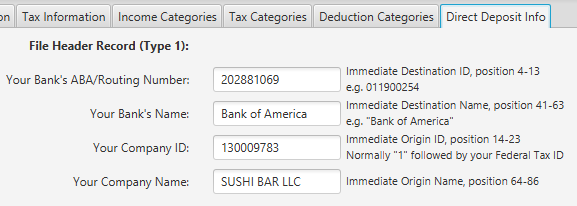
The fields above with notes to the right are pretty self-explanatory. Here are some more tips on how to fill them out.
- Your Bank‘s ABA/Routing Number: You can find the routing number on your check. If you have any doubts, call you bank.
- Your Bank‘s Name: the name of your bank.
- Your Company ID: If your bank assigned an ID for your company, enter it here. Otherwise, enter ‘1’ (without the quotes) followed by your federal tax ID, without the dash, only numbers.
- Your Company Name: This is your company name. It allows up to 22 characters.
Note: The notes to the right of each field above shows the position of the field in the record of the direct deposit file. It can be useful if you need to inspect the generated deposit file before you upload it to your bank.
The next section of input fields are for record type 5, the batch header record. In most cases, they should be the same as the corresponding field for record type 1, unless your bank provided you with different values.
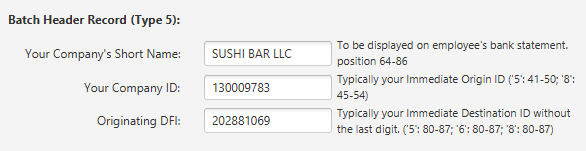
The next section is needed only if your bank requires that you submit a balanced file. In such a case, make sure that the "Create Balanced File" checkbox is checked and the following fields for the offset record are filled out.
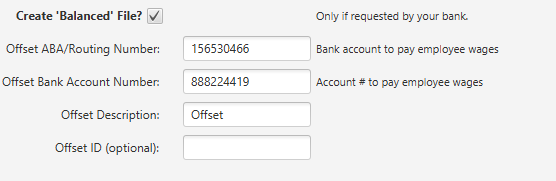
- Offset ABA/Routing Number: This should be the same as what you filled out for record type 1, unless you want to use funds from a different bank account to pay your employees.
- Offset Bank Account Number: The bank account holding funds to pay your employees.
- Offset Description: You can leave it with the default value, or enter your company name, unless your bank provided a different value.
- Offset ID: Follow the instructions from your bank if there are any, or leave it blank.
3. Enroll Employees for Direct Deposit
To pay an employee through direct deposit, the employee has to be enrolled for direct deposit. To enroll an employee, just select "Employees" from the top menu, find and select the employee from the list, and then click the "Edit Employee" button. The "Direct Deposit" information is in the "Direct Deposit" tab. It looks as follows.
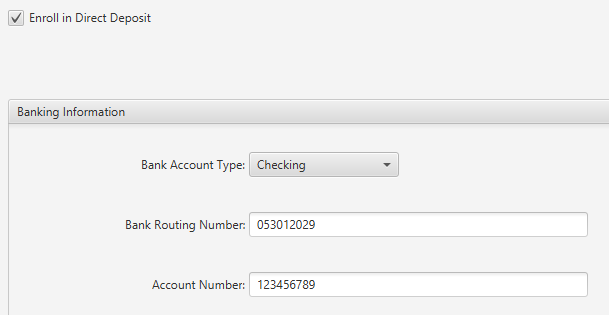
First make sure the "Enroll in Direct Deposit" checkbox is checked. Then fill out the bank account information. A void check from the employee would help fill out the information.
4. Pay Employees through Direct Deposit
After you have done the company setup for direct deposit and enrolled your employees, you can start to pay your employees through direct deposit. First, you run payroll as usual and create paychecks for all employees worked in the pay period. Then select "Direct Deposit" from the main menu. The paychecks for all enrolled employees will show as "Outstanding Transactions"
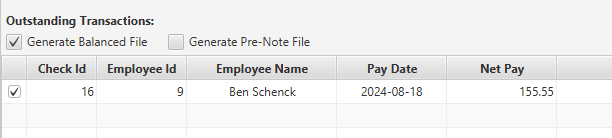
If your bank requires a balanced file, make sure the "Generate Balanced File" checkbox is checked. A pre-note file is a direct deposit file with zero dollars for all payees. It is for verification purposes. If your bank requires that you send a pre-note file before you pay any employees for the first time, you can generate such a file if you select the "Generate Pre-Note File" checkbox.
If you need to exclude an employee from a direct deposit file, just uncheck the checkbox for the corresponding record in the transactions list.
Once you are ready, just click the "Generate Direct Deposit File" button to generate the file. The default location for the file is
<workspace>/<Company Name>/Direct Deposit
where <workspace> is the workspace directory that you have specified when you ran the initial setup. If you have forgotten where it is, you can click on the gear icon on the main menu to launch the setup dialog.
Finally, you may upload the file to your bank.