Payroll4US Paycheck Printing
Payroll4US supports different ways to print paychecks with pay stab. You can choose to print the check on top or bottom of the pay stab. You may print on pre-printed paper. You can also print on blank paper. Since all pre-printed checks are different, with Payroll4US, you can set the positions of printed items, such as the date, the amount, and the payee etc.
1. Paycheck Template
Here is an example paycheck to be printed on pre-printed checks
If you want to print on regular blank paper, the MICR data and other information will be included. The following is an example.
2. Paycheck Layout Setup
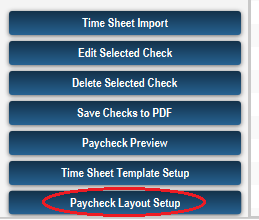
Pre-printed checks ordered from different vendors all look different in size and layout. Even if you plan to print on blank paper, your bank may have specific requirements on the positions of various printed elements. Payroll4US allows you to have complete control over how the printed check will look like. To do the setup, just click on the "Paycheck Layout Setup" menu option on the Paycheck screen, as shown below
The following layout setup screen will popup
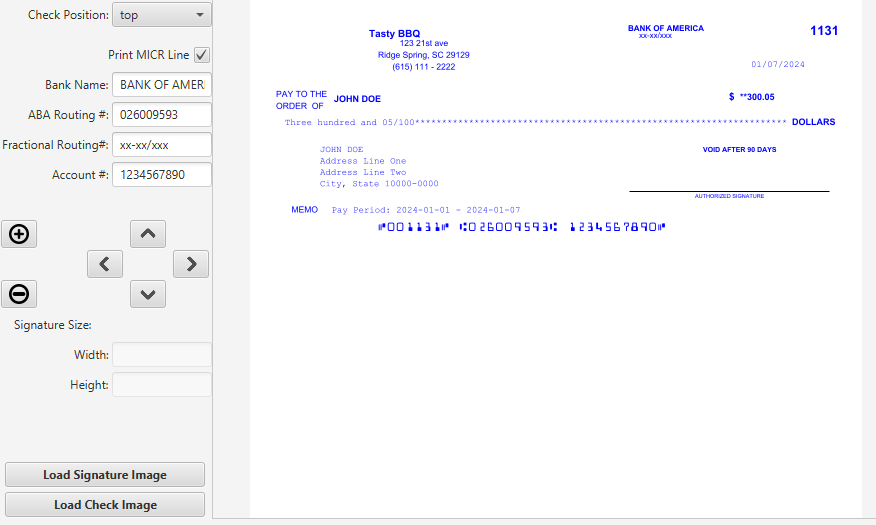
Print MICR Line This checkbox allows you to turn on or off MICR line printing. If you will be printing on blank paper, make sure this checkbox is checked. Otherwise, keep it unchecked if you are printing on pre-printed checks.
If MICR Line is turned on, make sure you enter the following information about your bank and the checking account for paycheck funds
- Name of Bank, e.g. Bank of America
- ABA Routing Number, e.g. 026009593
- Fractional Routing Number. It will look like xx-xx/xxx
- Employer Checking Accounting Number, e.g. 123456789
Turning on MICR line will also turn on a number of different fields, as you will be printing the check on a blank paper. Otherwise, only the following items will be printed.
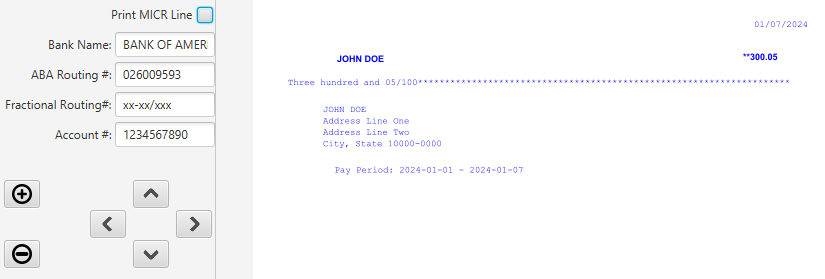
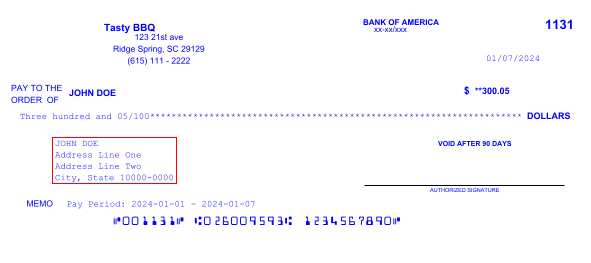
- Adjust Item position: The right hand side of the above screenshots is the check image. Select any of them by clicking on it. Then use the arrow keys to move it around.
If an item is selected, it will be highlighted with a red rectangle. Pressing the arrow keys or click on the arrow buttons on the left side will move the item around.
- Signature Printing: If you want to print signature on your paychecks, save your signature as a image to be included here.
You can specify the width and height to adjust the size of it on the paycheck.
- Loading Check Image: Adjusting the item positions can be a tedious try-and-error process. Alternatively, you can scan your pre-printed check and save it as a pdf or common image file, then, you may load it here on this paycheck layout setup screen. With the image loaded, you would know where exactly each item should go. It is preferred that you use the same printer to scan the image as that for printing paychecks.