Time Sheet Import Guide
If you have many hourly paid employees, entering the time worked can be a tedious process and may be error prone. When you do time tracking for your employees, you may already have the time punches in a database or a file. The good news is that Payroll4US allows you to import a time sheet file to create the paychecks. This will significantly improve your efficiency and data accuracy.
1. Time Sheet Format
A typical time sheet file looks like the following.
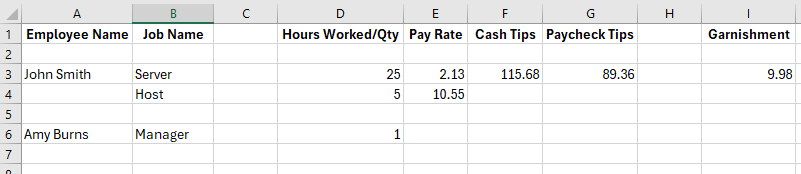
The first row is a header record that tells what that column is for. We hope the overall time sheet looks self-explanatory. But, let us take a detailed look at each column.
Employee Name: The employee name field is required to identify who the time entry is for. You can have the full name in one column, as shown in the above example. Or, you can also have first name and last name in two separate columns, which is preferred. If put in one column, they can be formatted as "firstname lastname" or "lastname, firstname".
Each employee can have multiple records if they worked different jobs in this pay period. There should be no blank lines between the records belonging to one employee. You can have blank lines separating records for different employees for clarity.
The employee name should be on the first record for that employee and can be omitted on subsequent records. If you do include the employee name on any subsequent records, there will be multiple paychecks, and each paycheck will reflect the pay for that record plus the subsequent records with employee name omitted.
- Job Name:This is the job type defined at the company level. You should have created them when you created the company record. This job should also have been assigned to this employee for this time sheet entry to be included in the pay. If neither one is the case, you will be prompted to add it at the company and/or employee level. Please make sure the job name is spelled exactly the same as defined in the company record.
If an employee has only one job assigned, you can leave this column blank.
- Hours Worked/QTY: This column is the hours worked if the employee is paid hourly or pieces if the employee is paid by pieces. For salaried employees, enter "1". If there is no pay for a salaried employee, enter "0".
- Pay Rate: Each employee is paid at a rate specified in the employee record for each job they are assigned. If you include the pay rate in the time sheet, it will override what’s in the employee record and used only for this particular pay. For a salaried employee, this should be the annual rate.
- Cash Tips: If your company is a restaurant, your employees may have tips income. Include the tips amount in the record for the job that they performed to receive the tips. Cash tips are the money they received directly from the customers. This amount will not be included in the net pay amount on the paycheck since they have already received the money. But it will be included for tax reporting, tax withholding calculations, and deduction calculations if applicable.
- Paycheck Tips: This is the tips amount that is included in the paycheck, typically because it‘s part of the credit card charges. If you cash the charge tips for your employees, the tips amount should be included as Cash Tips, and the amount will not be part of the net pay amount.
- Garnishment: This is an example to show that you can include deductions in a time sheet. You can include at most two different deductions. Deductions are typically calculated based on deduction setup in the employee record. It is normally either a fixed amount or a fixed percentage of gross pay on each paycheck. You include a deduction column in the time sheet only if you need to use a different amount.
2. Time Sheet Setup
Before you can import a time sheet, you need to tell Payroll4US what data is in which columns. Hence you will run the time sheet setup process. The screen looks as follows. The purpose of this process is to map each column in the time sheet excel document to a corresponding column in the database. Please also note that you can have blank columns, or columns with your own notes that is not used for the import process. But all columns used for import should be between column A and Column N.
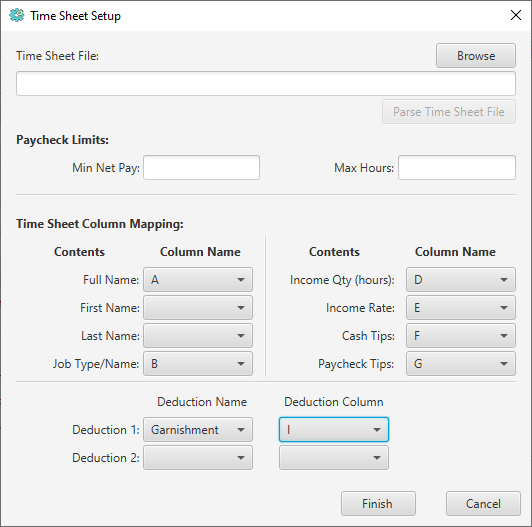
The above setup screen reflects the correct mapping for the example time sheet (from column A to I).
To help speed up the setup, you may click on the browse button to select a time sheet file and then click on the Parse Time Sheet File button, it will try to read the header row and "guess" the column mappings. The results depend on how accurate the header record matches expected column names. You will review and make necessary adjustments.
There are two additional fields on this screen. The Min Net Pay text field is the minimum net pay amount accepted on a paycheck. Normally, it’s zero(0). This is normally used to prevent net pay amount to be negative due to income such as cash tips that is not included in net pay but included for tax withholdings and deductions calculations. Setting Min Net Pay to zero(0) will cause federal/state/local income tax withholdings to be reduced if needed to prevent a negative net pay amount. Social Security and Medicare tax withholdings will not be affected. If the net pay still end up to be negative after possible adjustments, a warning message will be shown to get your attention. If such adjustments on tax withholding is not what you expect, leave the Min Net Pay blank.
The Max Hours option let you set the maximum number of hours allowed to work a particular job in a pay period if applicable.
3. Time Sheet Import
The time sheet import screen looks as follows
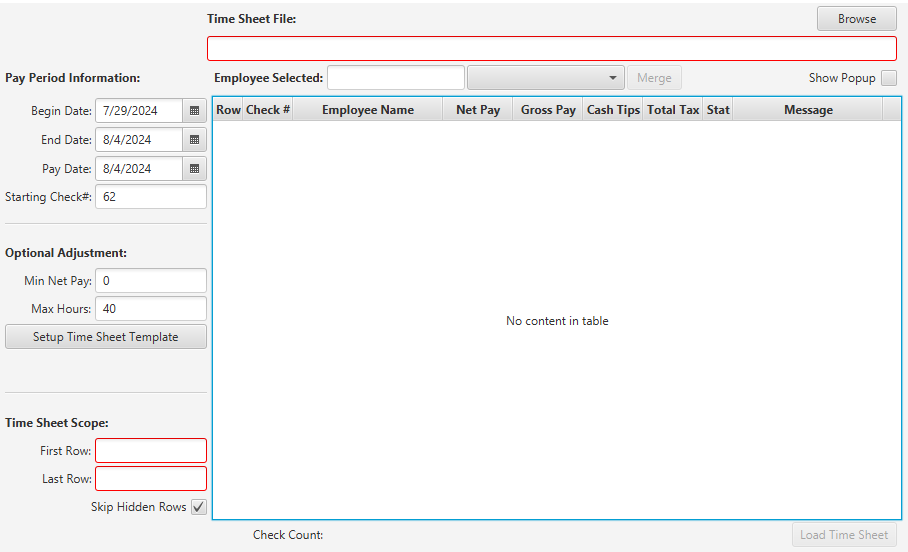
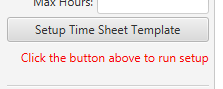
If you have not run the above time sheet setup process, you will be prompted to do so as follows
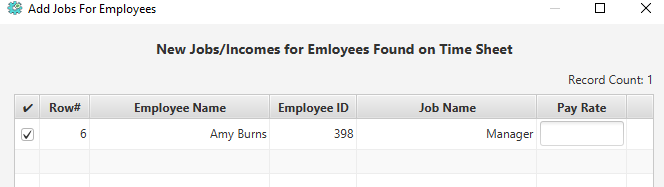
Next step, you click on the Browse button at the top right corner and select your time sheet document. It will automatically parse the file and find out the first and last row for your time sheet data, excluding the header. Then you will click on the Load Time Sheet button at the lower right corner. With our example time sheet above in setion 1, it will load and process all time sheet entries. It will validate all job names and make sure they are defined for the company. If any job name is not found in the company record, you will be prompted to add it. Next, it makes sure that the job is assigned to the employee properly. If not, you will be prompted to do the proper job asignment. The following is an example where it finds that on row 6 of the time sheet document, employee Amy Burns is not asigned job "Manager". To acknowledge, you fill in the rate for the job and click the Finish button at the bottom of the screen to proceed. Please note that, if the Manager job is defined as a hourly paid job, you enter the hourly rate here for Amy; if it is defined as a salaried job, you will enter the annual rate.
After all the validations and calculations it shows the results as below.
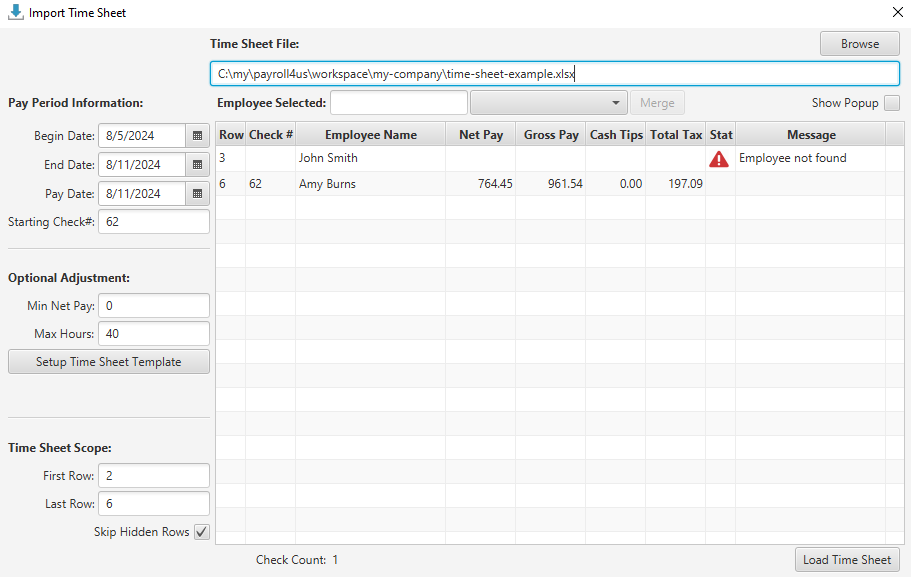
As you can see above, there are two records loaded in the table, one for each employee. This means there will be two paychecks created. In the record it also shows the corresponding row number in the time sheet document for easy cross check.
The time sheet parser also auto-detect the first and last row of your data. You can adjust the range if you want certain rows to be skipped. In the excel document, you can also hide certain rows. If you have the Skip Hidden Rows checkbox checked, the hidden rows will be skipped.
You may also have noticed that there is a warning message saying "Employee Not Found" for row 3 with employee named "John Smith". To resolve the issue, just click on the record to highlight it. Then the name "John Smith" will show up in the text field right above the table. Beside it, there will be a list of best matches found in the employee table. In this particular case, the best match for "John Smith" is spelled as "Jon Smith" in the database. If you think both are correct spelling for the same person, just click the Merge button to the right. Going forward, it will always consider both names are for the same person. This can be useful in case an employee has a formal name as shown on their SSN card and a different preferred name that they want to go by. Of course, if one is spelled wrong, you should either correct it in the time sheet or in the database through the employee maintenance functions.

After you resolve all the issues, all entries should be loaded clean. The result screen looks as follows.
One last note, please do not forget to set our pay period information correctly. The default value is set to previous pay period. For example, if you pay weekly, the default value will be the start and end of last week. Making a mistake here and then trying to correct the pay period info can be tedious.
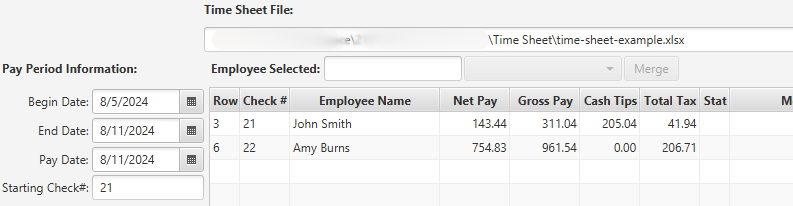
Finally, you just click the Finish button at the bottom of the screen to generate all the paychecks. You may switch to the paycheck screen to review the details. You may also print them out or save them as a PDF document.
If you have employees enrolled for direct deposit, please select "Direct Deposit" from the main menu to generate a direct deposit file and transmit it to your bank.