Payroll4US Quick Start Guide
1. Download and install Payroll4US
Installation of Payroll4US is pretty straightforward. Aftre downloading the installer, double clicking on it will kick off the installation process. It will finish in a few steps after you accept the license agreement.
2. Setup
When you launch Payroll4US for the first time, you will be prompted to enter the minimum information needed to run Payroll4US as shown below. All three fields are marked as required.
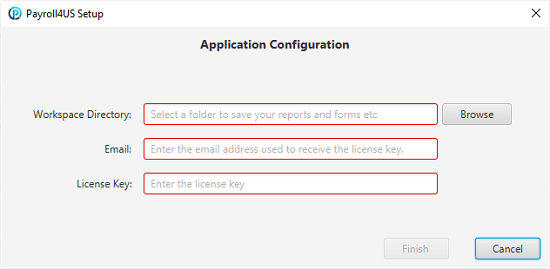
- Workspace Directory: This will be the folder to save all your data files, including forms, reports, timesheets, and paychecks etc. It is highly recommended that you create a new folder for this purpose to ensure it‘s clean and have all the proper access permissions.
- Email and License Key: These two fields are required to validate the license key. Please enter the email address that you used to receive the license key. It will fail the validation if you enter a different email address here. Both email and license key are case in-sensitive.
3. Create A New Company
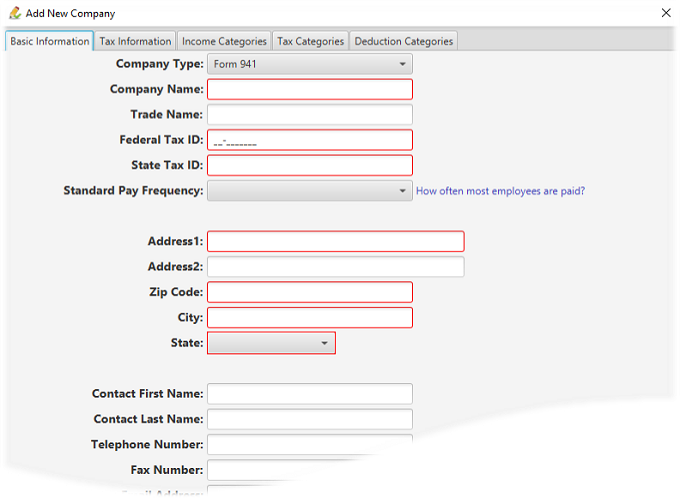
After you finish the above setup step, and the license key validation finishes successfully, you will be sent to the below screen to enter your company information. Please fill in all required information. There are multiple tabs. Please review them all to make sure they are correct and applicable to your company.
- Basic Information: The red fields are required. We recommend that, in addition to the required fields, you provide as much information as possible. Double check the data entered and make sure they are accurate, e.g. Federal Tax ID and State Tax Id. The information here goes to a lot of reports and forms that are critical for audit and tax return purposes.
- Tax Information: This tab contains information needed for tax calculations and tax returns.
- W2/W3 Information: These fields are needed when generating your W2/W3 forms, especially if you plan to E-File your return. Control Number and Establishment Number, you can assign any value of your choice. For Kind of Employer, Employment Code and Tax Jurisdiction Code are for E-File W2/W3. The default values are good for most businesses.
- Tax and Paycheck Options: You may just leave the fields with default value. Payroll4US handles the tax withholding rounding for your state tax based on your state’s requirements.
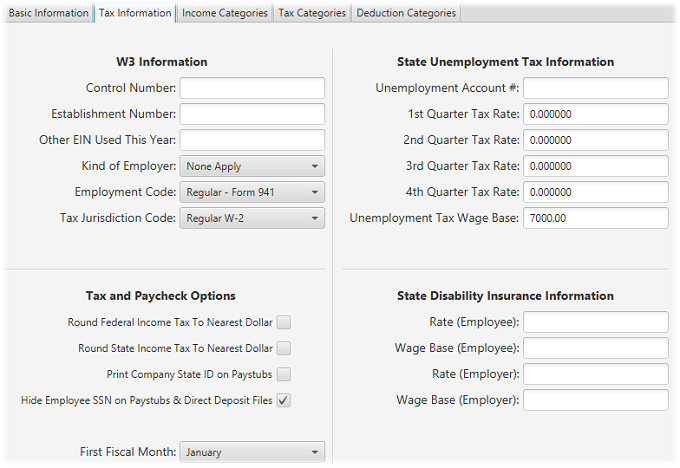
- State Unemployment Tax Information: You enter your experience rate for SUTA tax that your state has assigned to you. You are allowed to have a different rate for each quarter. In most cases, it’s one rate for the entire year. In such a case, just enter that rate for all four quarters. The Wage Base is preset for your state. If you have a special situation, you may change it.
- State Disability Insurance Information: Enter the rates if this tax is applicable to you.
- Income/Job Information
In Payroll4US Income type/code and Job type/code are used interchangably. There are a set of pre-defined income/job codes defined for you. Feel free to add your own if you need to. You need to have all you income types defined before you enter your employee information. Each employee needs to have job codes assigned to them before they can earn wages with that job codes.
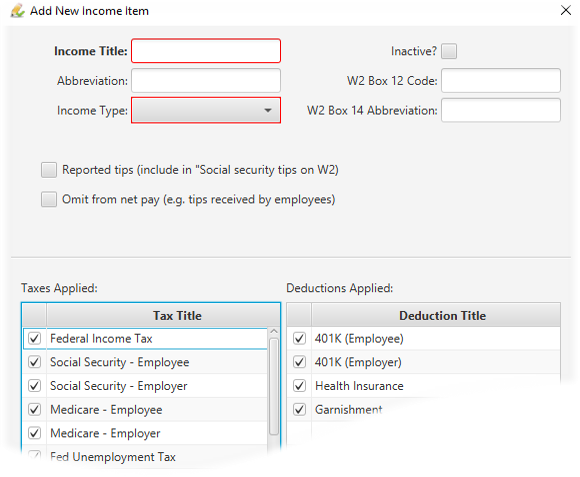
The income type add screen looks as above. Please fill out the required fields. By default, all taxes and deductions are applicable. Feel free to de-select if any od them don’t apply.
If this income needs to go to the W2 box 12 or box 14, enter the approprioate codes here in the corresponding box.
Now you have successfully created you company. If you are currently use other payroll software and you are able to export the company data to excel files, you can import the data into Payroll4US. You can find instructions in the Company Data Import Guide.
4. Create New Employees
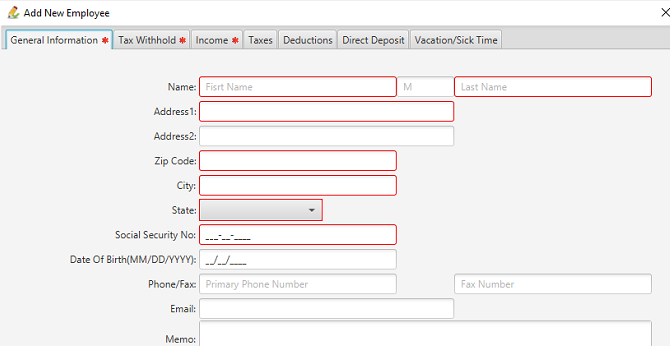
The new employee screen is organized into multiple tabs. The first tab, as shown below, contains basic demographic info. Make sure all the info is accurate, especially the social security number.
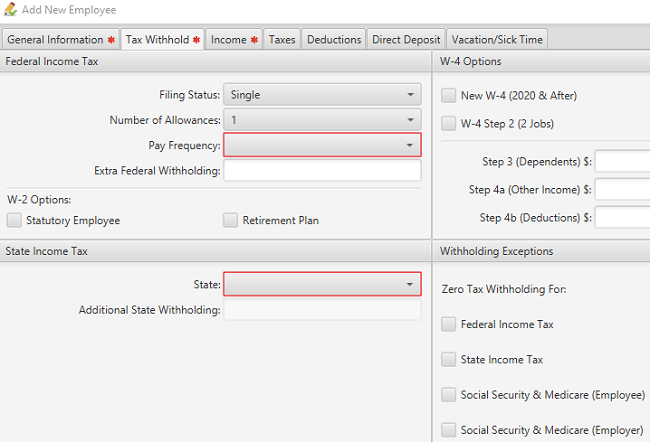
The tax withholding tab is where you enter employee’s W-2 and W-4 information. Do not forget to select a pay frequency, e.g. weekly, bi-weekly, or monthly etc. The State selection here is for state income tax withholding. Payroll4US allows it to be different than the state as in the employee address. You can do state income tax withholding for one state. The zero tax withholding checkboxes are for rare situations. For most employees, they should be left unchecked.
Once you select the State, the State Income Tax section will be updated to reflect what are needed based on the state W-4 form. You will also be prompted to enter the locality info for local income tax withholding purposes if applicable. Ohio and Pennsylvania are the two states with the most complex local income tax structures.
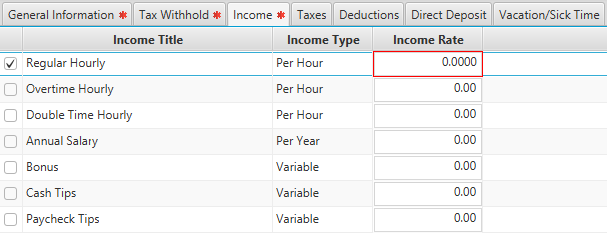
The employee income tab shows a list of income types available, including the ones you may have defined when you create the company. An income should be checked and filled with the proper rate information for the employee to receive pay for that income type.
The rest of the tabs, taxes, Deductions, Direct Deposit, and Vacation/Sick Time are fairly straightforward. Please review all information entered and then click Finish to save the changes. Repeat the process for each employee. This process can be very tedious if you have many employees. If you have your employee information in a database or an excel document, you can perform a data import, which will save you time tremendously and be more accurate. For details about the import process, please refer to the Employee Data Import Guide.
Now, you have finished the setup, created a company record and saved your employees in the Payroll4US database. You are ready to create paychecks to pay your employees and produce reports and forms.